


QR Scanner
3.72.97K Reviews
App Specs
- Version
- 1.7.0
- Updated On
- License
- Free
- Downloads
- 10,000,000+
- Developer
- P & L Studio
- Categories
- Tools
- Platform
- Android, iOS
Screenshots
 Analysis by AppCompare
For me, the real test of a QR scanner is not how many options it puts on screen; it is whether I can use it quickly when someone is waiting, a sign is hard to read, or I need to get back to a result later. QR Scanner is a free tools app from P & L Studio, and its basic appeal is easy to understand: it gives you a focused way to read codes without turning the task into a project. It is rated for Everyone, has a 3.7 average from around 54,000 ratings, and has passed 10 million installs. Those figures suggest plenty of people have tried it, but they do not guarantee that it will suit every phone or scanning situation.
Where a quick scan can become a slow one
Most QR scanning problems are mundane: the camera is pointed at a glossy menu, the code is too small, the room is dim, or the phone keeps focusing on something behind it. I would not treat a delayed result as proof that the app has failed. First, hold the phone steady and give the camera a moment to settle; then move slightly closer or farther away rather than pressing the phone against the printed code. A little space around the code can make it easier for the camera to read the whole pattern.
There is also a difference between reading a code and deciding what to do with its result. A QR code can lead to a web page, text, or another kind of information, and the next useful step depends on what it contains. I recommend pausing to check the destination before opening anything unfamiliar. That small habit is more valuable than scanning at maximum speed, especially when a code is printed on a poster or placed somewhere public.
Setup checks that prevent avoidable friction
The app is free and its current version is 1.6.0, with Android support starting at version 6.0. If you are setting it up on Android, check that the phone meets that minimum and that the camera is available to the app when you try to scan. If scanning does not start, review the camera access setting in the phone’s app controls rather than repeatedly reinstalling the app. On iPhone, use the app-store version available for your device and check the camera access setting there as well.
I would also test the scanner with a clear code in good light before relying on it at a restaurant, event, or checkout. That quick test helps separate setup trouble from a hard-to-read printout. Keep the lens clean, avoid covering it with a finger, and make sure the code is not cropped by the edge of the camera view. These are simple checks, but they can save you from blaming the app for a smudged or poorly printed code.
Using QR Scanner with fewer surprises
I find it helpful to treat a scan as two separate steps: first read the pattern, then decide whether its result is useful and safe to open. If I’m somewhere busy, I’ll step aside before adjusting the camera or checking a destination, rather than rushing through both tasks at once. That small pause makes the process calmer and gives me a clearer sense of what to try if the code proves difficult to read.
A practical workflow when a scan does not work
If a code is not recognized, I would change one thing at a time: steady the phone, improve the lighting, adjust the distance, and try again. If the code is on a screen, reduce glare by changing the angle; if it is on paper, flatten the page where possible. A code can also be damaged, incomplete, or printed at a size that makes it difficult for a phone camera to read. Trying a second code is a quick way to see whether the issue is specific to the first one.
Worth Reading Before You Choose

Baby Panda World Brings Quick Play to Modern Phones, but Its Game Library Feels Busy

ESPN’s Live Game View Makes Following Close Games Easier

QuizzLand Review: A Good Fit for Short Trivia Breaks, Not Every Player

Basketball Stars: Multiplayer Is Fast, but Can It Recover When Matches Go Wrong?

WEBTOON Turns Phone Updates Into a Better Reading Routine

Link to Windows Runs on Shared Habits, Not Social Feeds
For a result you need to find again, the published app description does not establish which controls are available for saving, sorting, or sharing scans, so I would avoid building an important workflow around those assumptions. If you need a record, keep the destination open long enough to bookmark it in your browser or copy the information into a note using the tools your phone already provides. That approach is especially sensible for a ticket, instruction sheet, or product page you may need later.
When the scanner is not the cause
Sometimes a successful scan still leads to a page that will not load. In that case, the code may have been read correctly while the destination itself is unavailable, the network is weak, or the address is no longer current. Check your connection and, if possible, try again later. A QR scanner can interpret what is encoded, but it cannot repair a broken website or make a poor connection faster.
Use the same caution you would with an unfamiliar link in a message. A code’s appearance alone does not prove that its destination is trustworthy. If the result looks unexpected, asks for sensitive details, or does not match the place where you scanned it, stop and verify the source through a channel you already trust. This is a sensible safety check for any scanner, not a reason to assume that this particular app has inspected or approved a destination.
Who will get the most from it
I think this kind of focused scanner makes the most sense for someone who encounters QR codes now and then and wants a dedicated option ready to open. It can fit everyday errands: scanning a café menu, reading an instruction card, or opening a code on a notice without searching through a larger app first. It is also a straightforward choice for someone who prefers a separate tool rather than using a camera app’s built-in scanning shortcut.
If you scan codes only occasionally, your phone’s default camera may already be enough, so installing another app could add little value. At the other end, people who need to process many codes for work, export scan records, or follow a controlled inventory workflow should look for a specialist tool that clearly documents those needs. I would choose this app for quick personal use, not as the foundation of a business process that depends on features I cannot verify.
How it compares with the usual alternatives
The main alternative is often already in your pocket: many phone cameras can recognize QR codes without a separate scanner. That is convenient because there is nothing extra to open, and it may be the best choice for a one-off scan. A dedicated app earns its place when you want a specific scanning interface or prefer to keep that task separate from ordinary photography. Which option feels faster can depend on your phone and the way you use it, so I would try both before settling on a habit.
Browser-based scanning tools and broad utility apps can be useful too, but they may add steps or combine scanning with functions you do not need. The trade-off is simple: a dedicated scanner can make the task feel direct, while the built-in camera usually asks less of you in setup and storage. I would not install QR Scanner just because QR codes exist; I would install it if its dedicated approach feels more convenient on your device.
Small habits that make scanning more useful
One practical tip is to decide what you need from a scan before opening it. If you are comparing a product while shopping, capture the name or details you care about rather than assuming a code will always lead to a current price page. If you are scanning a venue notice, take a moment to check that the result belongs to that venue before following instructions. This keeps the scan connected to the real-world context instead of treating every code as automatically reliable.
For codes you expect to revisit, a simple naming habit in your notes can help: record where you found the code and why it mattered, not just the raw address. That is useful when several scans lead to similar pages. It also avoids depending on a scanner’s history or organization tools unless you have confirmed how they behave on your own installation. A few words such as “return instructions from the parcel” can be much easier to search for later than an unexplained link.
Getting Started with QR Scanner
First things first, installing the QR Scanner is a breeze. Whether you’re rocking an Android or an iPhone, the app is readily available in both app stores. Once installed, it doesn’t waste any time getting you into the action. The user interface is clean and intuitive, making it super easy for anyone to navigate, even if you’re not a tech whiz.
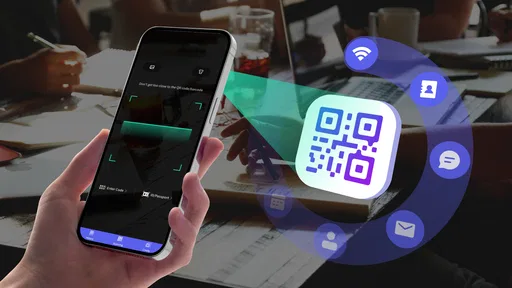
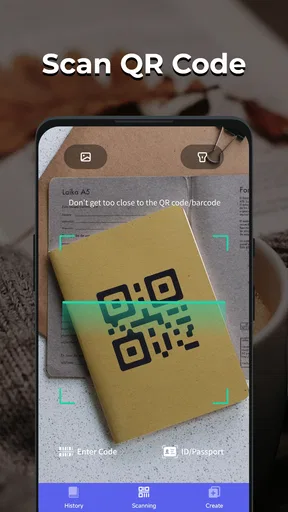
Upon launching the app, you’re welcomed by a simple camera interface. No unnecessary frills or distractions, just a straightforward screen ready to read any QR code you throw at it. And trust me, it does this incredibly fast! Just point and scan, and within seconds, you’re directed to the information or website embedded in the code.
The Features You’ll Love
The app isn’t just about scanning QR codes, though. It brings a host of other features to the table, enhancing its utility significantly. One of my favorites is the ability to scan barcodes. This feature comes in handy, especially when you’re out shopping and want to compare prices online. It’s like having a personal shopping assistant in your pocket.
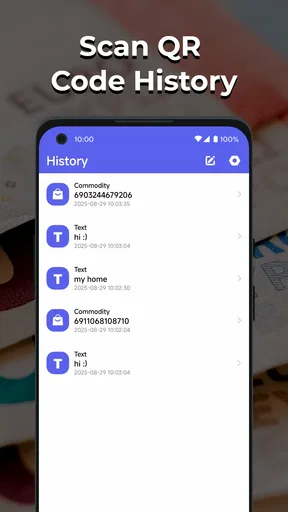
Another cool feature is the history log. It keeps a detailed record of all the QR codes and barcodes you’ve scanned. This is particularly useful if you need to revisit a website or piece of information but can’t quite remember the QR code associated with it. Plus, you can organize these logs for better accessibility.
Customization and Usability
One aspect where QR Scanner really shines is its customization options. You can tweak settings according to your preferences, such as changing the app theme or adjusting the notification settings. This personalization makes the app feel tailored to your needs.
Usability is top-notch, with the app supporting multiple languages and offering a seamless experience regardless of your device’s operating system. It’s optimized to run smoothly, ensuring that you don’t experience any lag or crashes, which is a huge plus in my book.
Security and Privacy
In today’s digital age, security is a significant concern for many users, and rightfully so. The developers of QR Scanner have taken this into account. The app ensures that your data remains private, with no unnecessary permissions required. It doesn’t store any personal information, which gives you peace of mind while using it.
Where It Could Improve
While the app is pretty stellar, there are a couple of areas where it could improve. For instance, it would be great to see more integration options with other apps or services. Imagine being able to directly share scanned results to your favorite note-taking app or social media platform. That would be a sweet addition!
Another potential enhancement could be the inclusion of a tutorial for first-time users. Although the app is easy to use, a quick guide could help those who are new to QR codes to get the most out of the app from the get-go.
Final Thoughts
All in all, the QR Scanner app is a fantastic tool for anyone looking to streamline their access to digital information. It’s fast, reliable, and comes packed with features that make it more than just a simple scanner. Whether you’re tech-savvy or just looking for an app to make your life a little easier, this one is definitely worth a download. So go ahead, give it a whirl, and see how it can simplify your everyday tasks!
My recommendation is to start with a low-stakes scan and see whether this dedicated interface suits the way you use your phone. The app was released on February 23, 2023, and its age rating is Everyone, which makes it accessible for general household use. With 2,700 reviews alongside its broader rating count, there is a sizable body of user feedback to consider, though I would still judge it by how it behaves on your own device rather than by popularity alone.
For a quick QR or barcode lookup, I find the idea appealing: open a purpose-built tool, scan, and continue with the errand at hand. For people who rarely scan, the camera already on their phone may be simpler. For people who need detailed control over records or dependable sharing between work systems, I would choose a more specialized solution. That distinction is the key to deciding whether this free app deserves a place on your phone.
Pros
- Fast scanning with accurate results.
- Supports multiple QR code formats.
- No internet required for basic use.
- User-friendly interface for all ages.
- Small app size saves device space.
Cons
- Contains ads which can be intrusive.
- Limited features without in-app purchases.
- Occasional scanning errors in low light.
- Requires camera access permissions.
- No advanced customization options.
FAQs for QR Scanner
What features does the QR Scanner app offer?
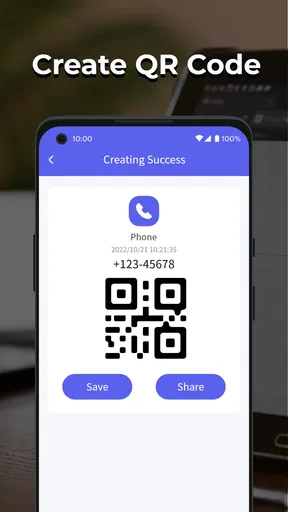
The QR Scanner app provides a range of features, including the ability to scan QR codes quickly and accurately. It supports multiple code formats such as barcodes and QR codes, and often includes options for saving and sharing scanned data. Some versions offer additional features like generating your own QR codes and history tracking.
Is the QR Scanner app free to use?
Most QR Scanner apps are free to download, but they may offer in-app purchases or ads. Some premium versions provide additional features such as ad-free experiences, enhanced scanning capabilities, and extra security measures. Always check the app store listing to understand the cost structure before downloading.
How secure is the QR Scanner app?
Security is a key concern with QR Scanner apps. Reputable apps will have security features that protect user data and prevent malicious code from being executed. Look for apps that offer privacy settings, data encryption, and do not require unnecessary permissions. Always read user reviews to gauge the app's reliability.
Does the QR Scanner app require an internet connection?
Generally, QR Scanner apps do not require an internet connection to scan QR codes. However, if a QR code contains a URL or needs to access online content, an internet connection will be necessary. Additionally, some features like cloud syncing or code sharing may also require you to be online.
Can the QR Scanner app scan barcodes as well?
Yes, many QR Scanner apps are equipped to scan both QR codes and barcodes. This versatility allows users to access a broader range of information, from product details to website links. Check the app description to ensure barcode scanning is supported if this feature is important to you.


